 County Control
Docs The CAD
The console
Calls on the left, the live map in the middle, units on the right. Everything a dispatcher needs without changing pages.
The call queue
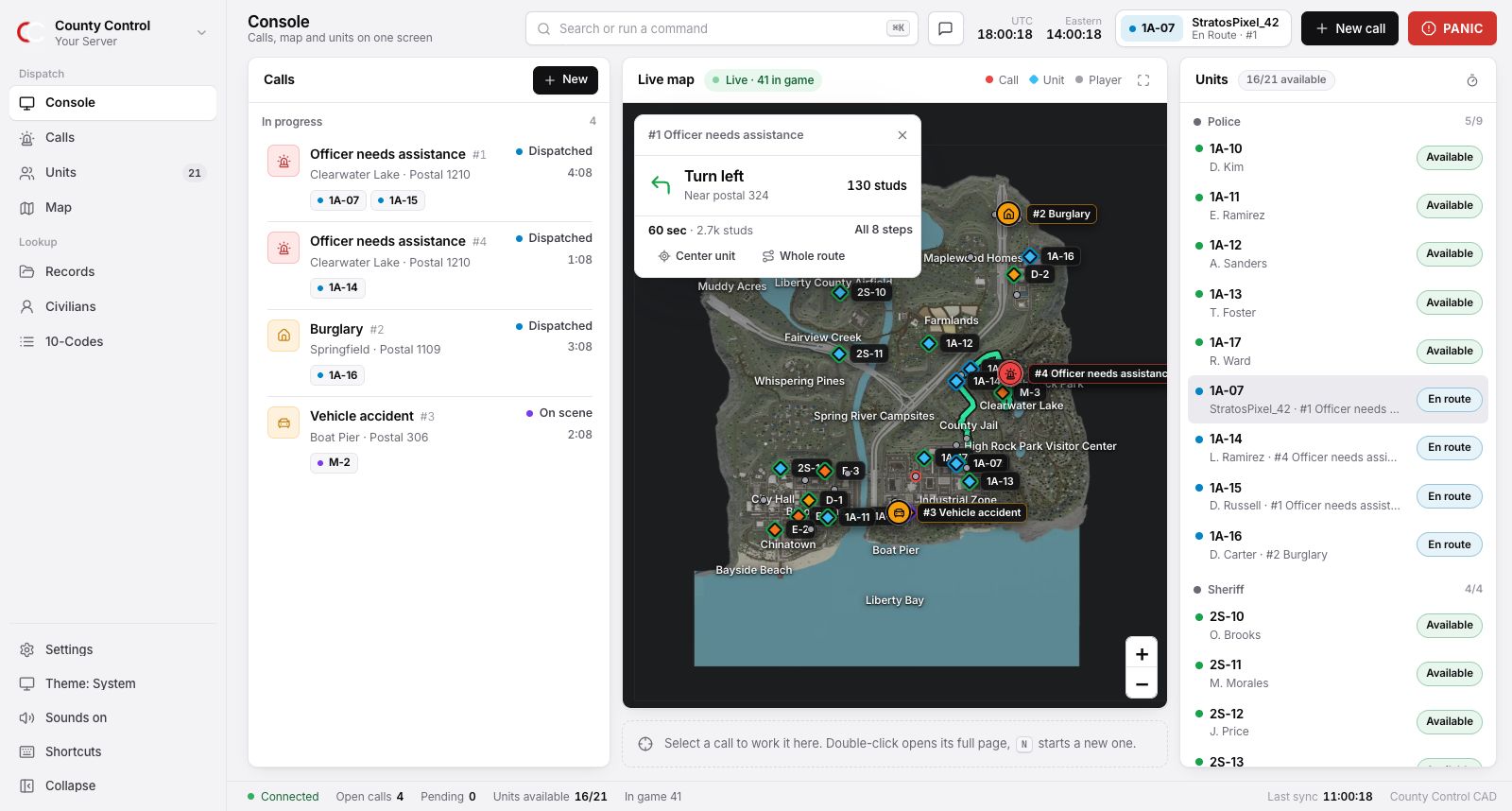
Calls waiting for a unit sit at the top under Waiting for a unit, highest priority first. Calls with units on them are under In progress. Each row shows the call's icon in its priority colour, the type and number, the location and postal, its status, how long it has been open and the units on it.
A call that waits too long for a unit starts to pulse red and plays a tone once: after 45 seconds for the top priority, 2 minutes for the second and 4 minutes for the rest. A warning sign next to a call means there is a premise note at that postal.
Click a call to work it here. Double-click opens its full page. Right-click for a menu with everything you can do to it.
The map
The real ER:LC map with postals and landmarks. Units are diamonds in their department's colour with a ring for their status. Civilians are small dots and calls are pins in their priority colour. Click any player for their details and actions. On your own call, directions to it appear in the top-left corner, turn by turn.
Team boundaries
Admins can draw areas each team has to stay in, in the CAD under Settings, Boundaries. Press Draw area, click the map at each corner, and press Finish or double-click. Pick the teams the area is for (Police, Sheriff, Fire, DOT, Civilian), and draw more areas if a team has more than one place it may be. Teams with no area can go anywhere.
When boundaries are on, a player who leaves every area for their team gets a private message in-game, like [CAD] You left the Civilian area. Go back within 60 seconds or you will be loaded. If they are still out when the time runs out, County Control runs :load on them, which sends them back to their spawn. The time is 30 seconds, 1, 2 or 5 minutes. In-game staff are left alone unless you switch off Staff can go anywhere.
The areas show faintly on every CAD map, and Settings lists who is outside their area right now. Checks run with every live update from the game, whether or not anyone has the CAD open. The bot needs the server key and in-game command access, the same as for in-game messages.
The selected call
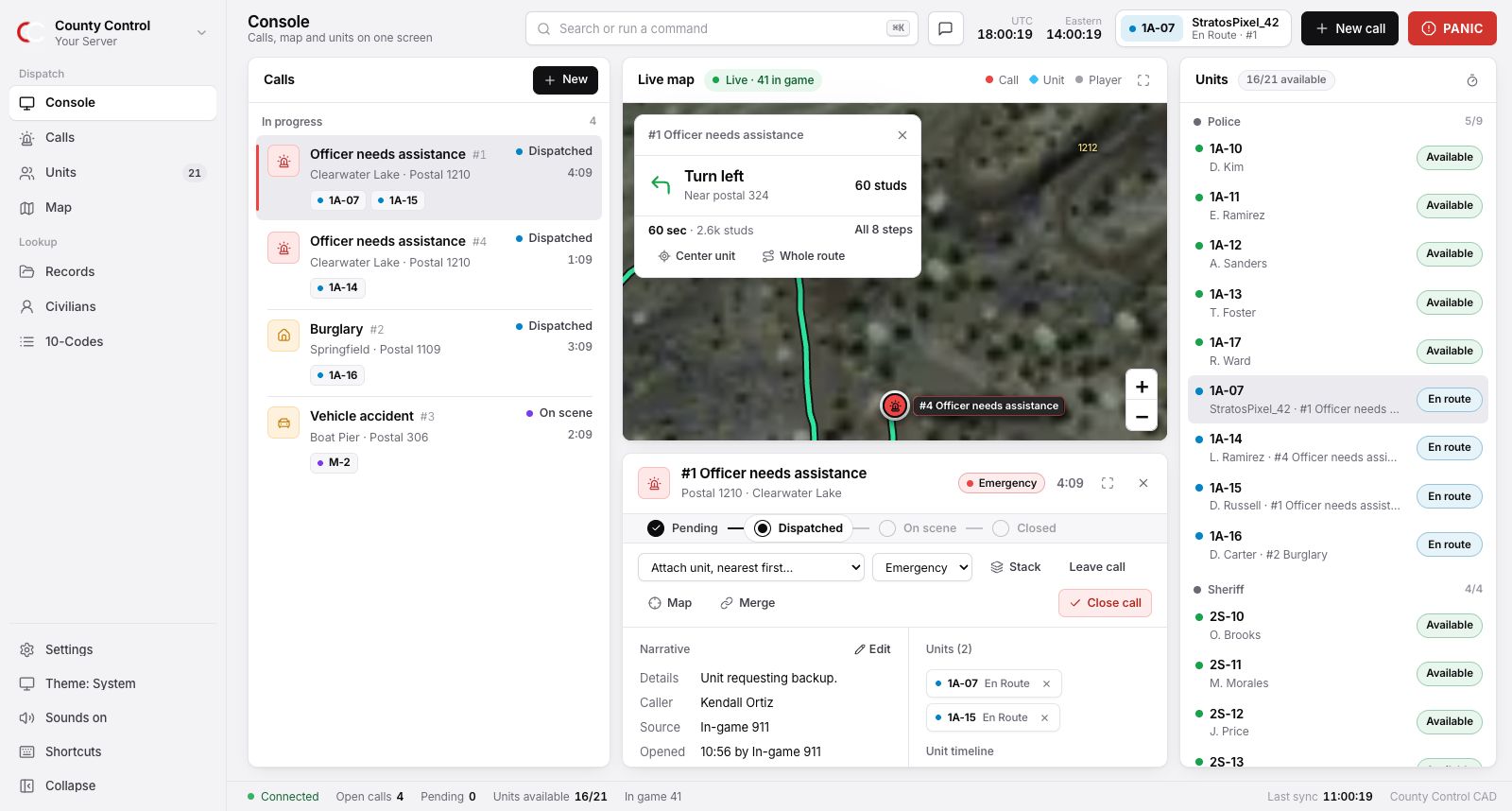
Under the map, the selected call shows:
- Its steps: Pending, Dispatched, On scene, Closed. Dispatchers move a call by clicking a step.
- Its actions in one row: send the recommended units, attach a unit (nearest first, with distances), priority, stack, attach yourself, merge and close.
- The narrative, involved people and vehicles, premise notes and earlier calls at the same postal, notes and the report.
- Units and their timeline, and who the call is tracking in a pursuit.
Press Esc to deselect.
The unit board
Everyone on duty, grouped by department. Each row has the callsign, name and the call they are on, how long they have been in their status, and a status menu. Units on scene or busy for 10 minutes or more turn amber. Right-click a unit to message it, send a status check, assign or stack a call, or take it off duty.
Something unclear or out of date? Tell us in the support server.