 County Control
Docs The CAD
Units in the field
Statuses, traffic stops, backup and panic. Built so a unit can work a call with the keyboard and never alt-tab twice.
Your status
| Status | Code | Key | What it means |
|---|---|---|---|
| Available | 10-8 | Free for a call. | |
| En route | 10-76 | E | Heading to your call. Moves the call to Dispatched. |
| On scene | 10-23 | O | At your call. Moves the call to On scene. |
| Busy | 10-6 | Working, but not on a CAD call. | |
| Out of service | 10-7 | Not taking calls. |
Press S for the full list, or use the menu on your unit chip in the top right. Going Available or Out of service clears you from your call.
Traffic stops
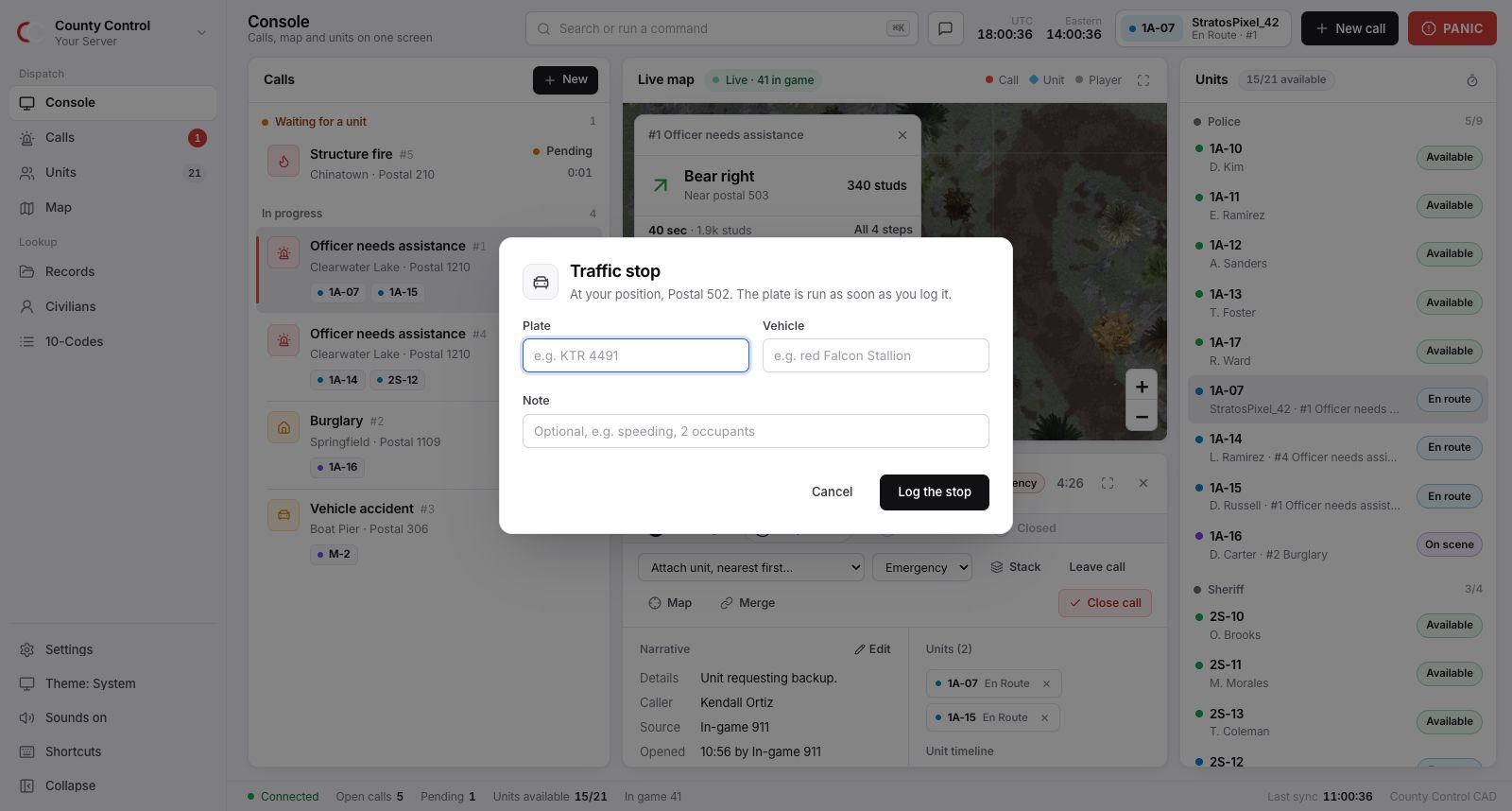
Press ShiftT, type the plate and press Enter. The CAD:
- opens a Traffic stop call at your spot in the game, with you on it and on scene;
- runs the plate: owner, registration and insurance go in the call's notes;
- attaches the vehicle and its registered owner to the call;
- warns you and every dispatcher at once if there is a warrant or BOLO on it.
Backup
Press B. Choose Assistance, or Urgent, officer needs help, and add a line if there is time. If you are on a call, it is flagged, and an urgent request raises it to the top priority. If you are not, a call opens at your spot with you on it. Every dispatcher gets a tone and a banner with a Respond button, and every unit gets it in-game.
Panic
The red PANIC button in the top right sends an alarm with your last known location to every CAD and to every unit in-game. Press it again to clear it. A dispatcher can clear it too.
The MDT window
The button with two overlapping windows in the top bar opens a small MDT that stays on top of ER:LC while you play. In Chrome and Edge it floats over every other window. Other browsers open it as a small pop-up.
It shows your callsign and status with one-tap status buttons, your call (priority, location, details and the latest notes) with Leave call and Close call, or the open calls with Attach when you have none. It also has your last few messages with a box to message dispatch, a plate lookup, and a Panic button. It updates with the CAD.
The MDT also has the radio (join, a hold-to-talk button and who is talking) and your bodycam. The County Control app opens the same MDT in its own window, at #/g/your-server/mdt.
Bodycam
The bodycam runs in the County Control app for Windows and Mac (download), not in a browser tab. Press the camera button in the top bar, Start under Bodycam in the MDT, or F9. The app shares just your ER:LC window, without its title bar, even while the CAD is in front. Windows needs no permission; macOS asks once for Screen Recording. While it runs, dispatchers see a red camera next to your callsign on the unit board and can watch you live on the Bodycam page, with your callsign and the time stamped on the picture. The picture is only what you share, a few frames a second, and it is never stored. Stop it from the same button, or by ending the share in your browser.
Dispatchers watch cameras from the Bodycam page in any browser.
Status checks and code 4
A dispatcher can ask units who have been on scene or busy for 10 minutes or more to check in, or ask one unit. You get a banner in the CAD and a private message in-game. Press Code 4 if you are fine, or Need backup if not. Until you answer, the board marks you with Check.
Directions
On a call, the map shows the route along real roads and the next turn in the top-left corner, with the distance in studs. Whole route lists every turn. A dispatcher can also send you to any spot on the map.
Something unclear or out of date? Tell us in the support server.